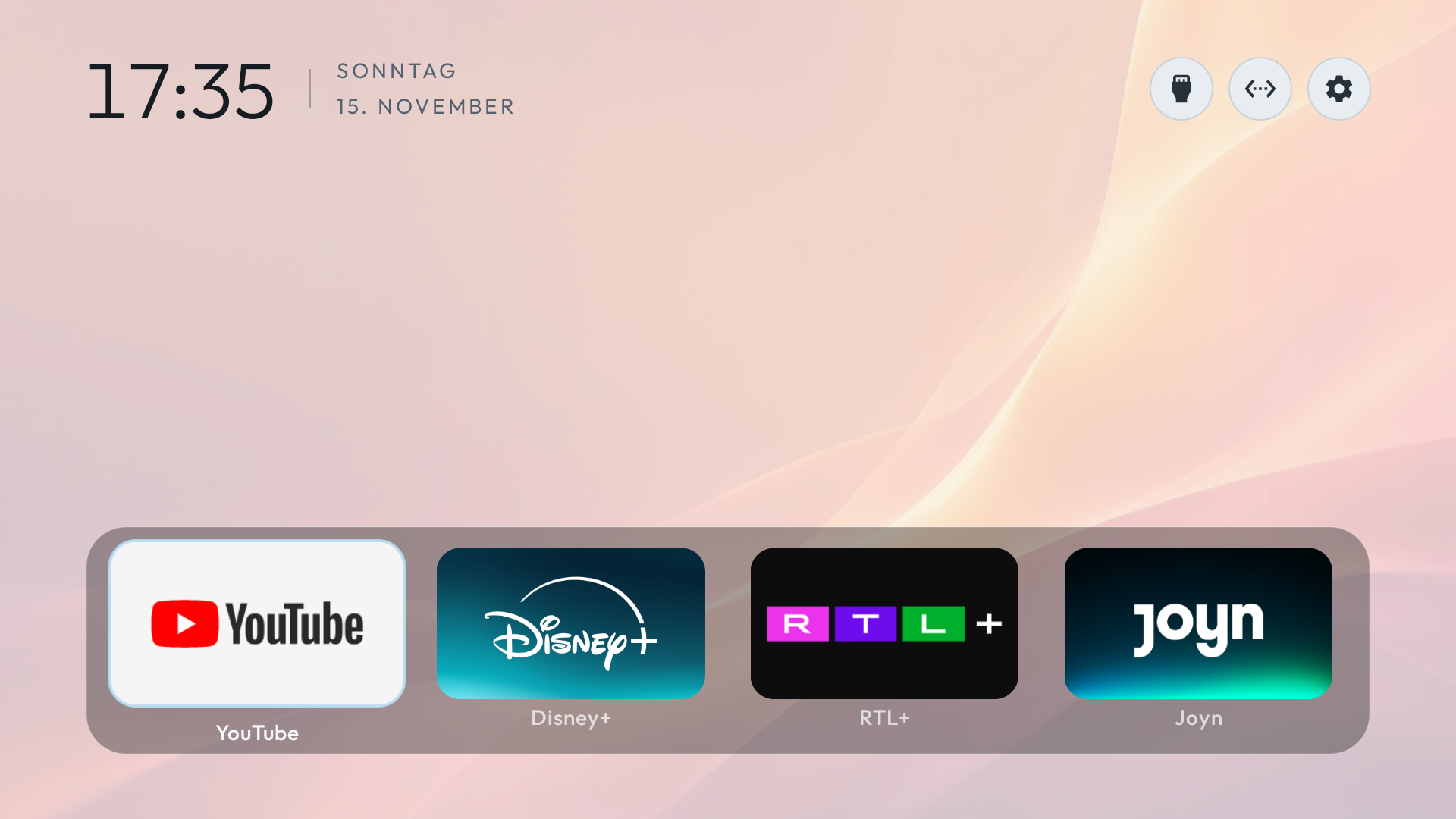
On Google TV, you can show Google Photos albums in Ambient Mode. That changes what appears while the TV is idle. It does not necessarily put the photo behind Home; for that, you need a layout that supports custom backgrounds.
First decide where the photo should appear
A screensaver appears when you stop using the TV. A Home background sits behind your apps while you are choosing what to watch. They may look similar in a photo, but TV settings usually treat them as different features.
For an idle screen, use Ambient Mode
Google’s menu names and available sources can vary by TV. On Android TV, screensaver settings are under device preferences or display settings, depending on the model.
- Create an album in Google Photos with the pictures you want to see.
- On Google TV, open Settings → System → Ambient Mode.
- Choose Google Photos as the source and select your album.
For Home, choose a layout that allows it
The default Google TV Home does not offer the same simple “pick any photo as wallpaper” control that your phone does. BetterTV is designed to let you choose a background from your phone and see it behind your apps on supported layouts. That way, the picture is part of the screen you actually use to start watching. Screensaver photos can be chosen separately.