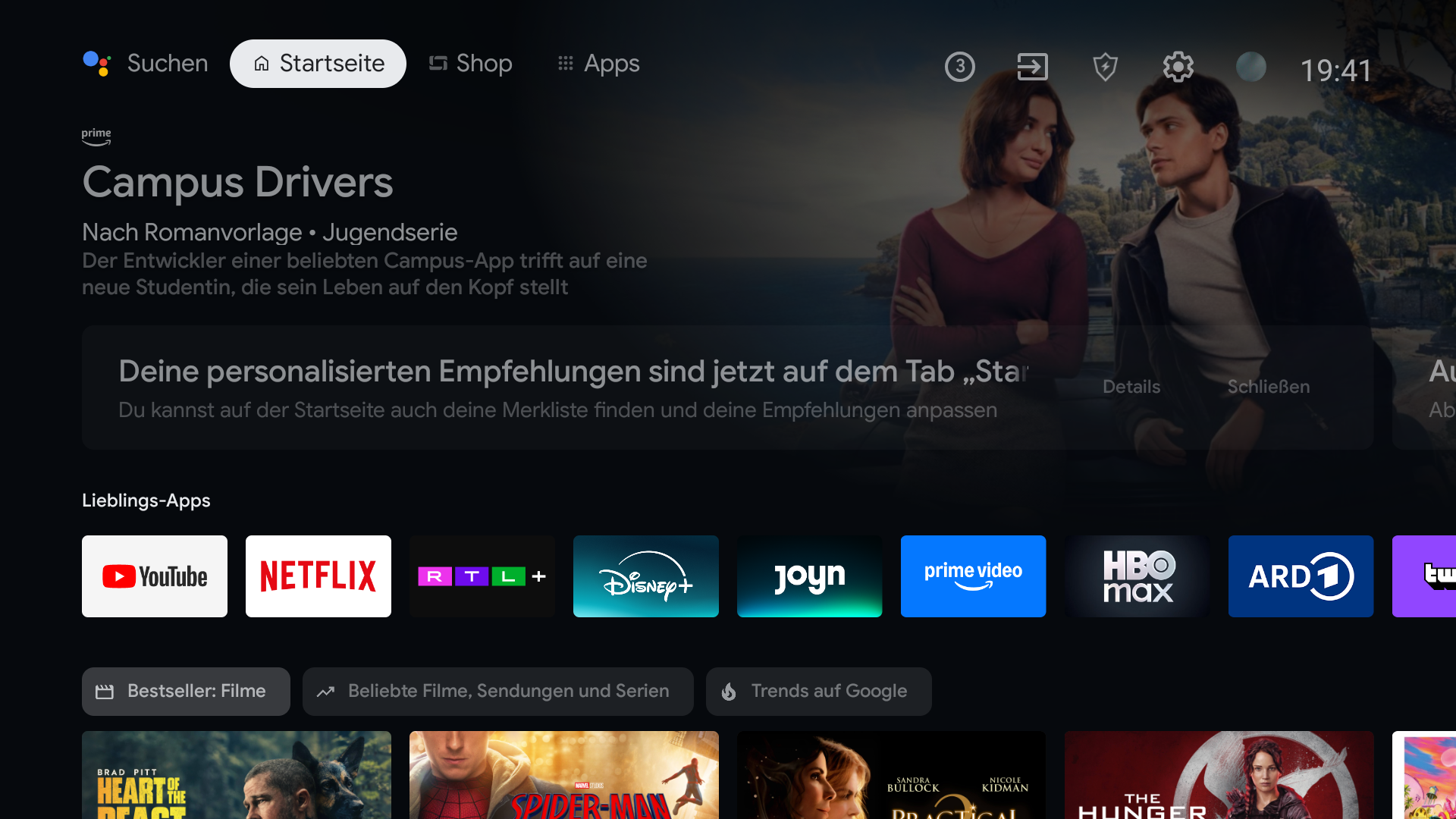
If you changed launchers, switch the default Home app back to the TV’s original launcher where your device allows it. The exact path differs by model. Do this before uninstalling the replacement launcher so you can confirm Home works normally.
Find out how the change was made
If you only reordered apps or enabled Apps only mode, you are still using the original Home. Reverse those choices in Google TV Settings or move the apps back.
If you installed an alternative launcher, check whether your TV has a default Home app setting or a Home app chooser. Select the manufacturer’s original launcher there. Devices that required a separate command or accessibility service to redirect Home may need that setup reversed too.
Test Home before removing anything
BetterTV’s planned setup includes a visible way back to the original Home. That matters because the biggest hesitation with changing a TV launcher is often the fear of getting stuck. Check the route back on your own model before making the switch.
- Open the original Home screen from your TV settings or app list.
- Set it as Home if the device offers a Home app chooser.
- Press the Home button and confirm it returns to the original interface.
- Only then uninstall the alternative launcher if you no longer want it.