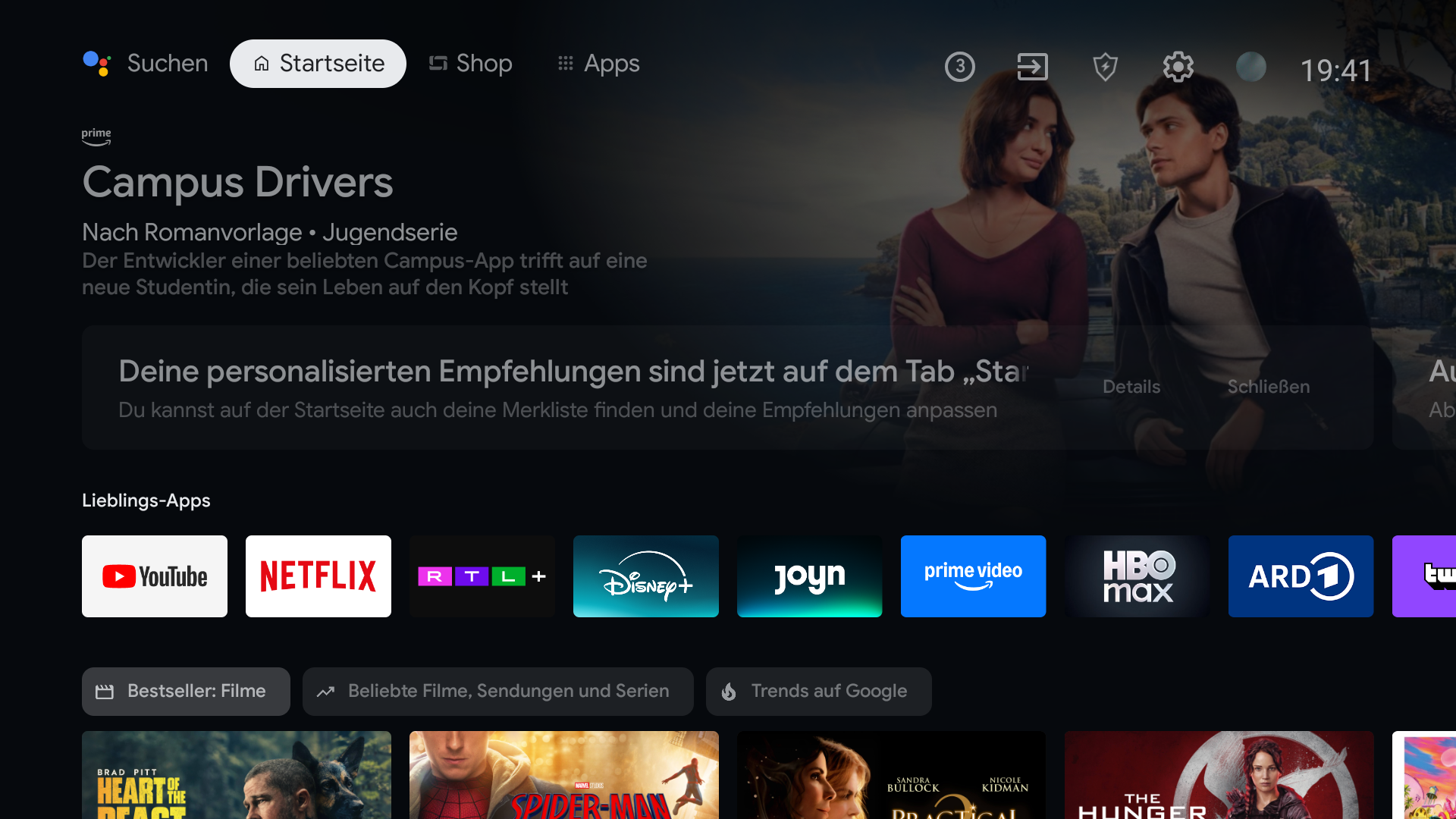
Apps only mode hides personalized recommendations, but Google says sponsored content can still appear. It is a way to reduce clutter, not a promise of an ad-free Home screen.
The name sounds stronger than the setting
Apps only mode makes your apps easier to find by removing many personalized rows. It does not turn Google TV into a plain grid of app icons. Google specifically notes that sponsored content can still show while the mode is on.
That is why turning it on can feel like only half a fix: you see fewer recommendations, but still encounter a large promotion before you reach an app.
Try it, then decide what you actually want
If the new Home is quiet enough for you, stop there. If you still land on a sponsored tile when all you wanted was an app, you are looking for a different Home launcher. BetterTV is built around that everyday moment: choose your layout and shortcuts on your phone, then reach them directly on Home. Whether a launcher can become the default depends on your device.
- Open Settings on your Google TV.
- Choose Accounts & Sign In, then your profile.
- Turn on Apps only mode and return to Home.
Do not confuse the TV Home with streaming apps
A different launcher changes what the Home button opens. It does not remove promotions or ads from inside YouTube, Netflix, or other services. That boundary is useful to know before installing anything.