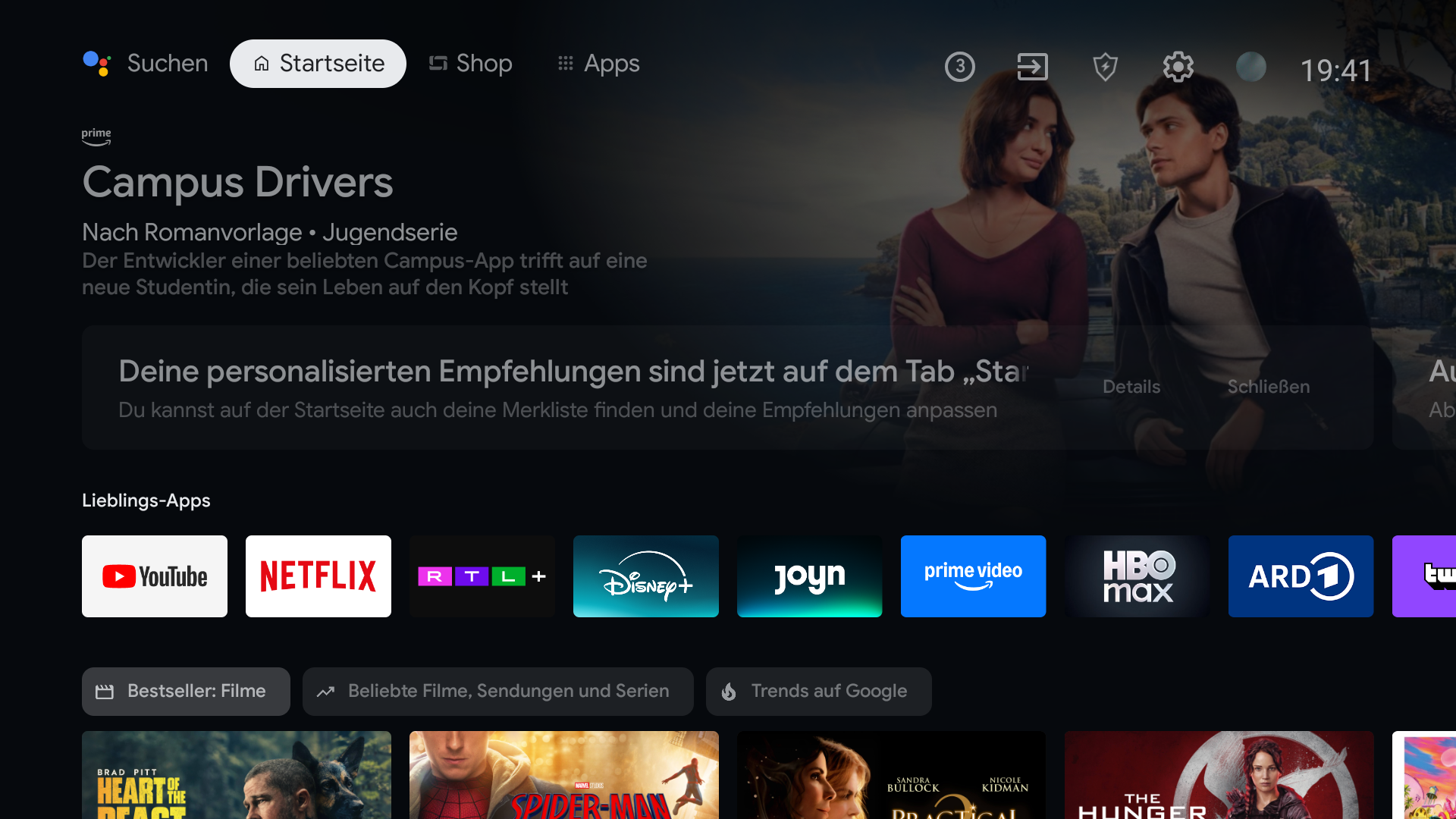
Google TV’s Apps only mode reduces recommendations, but Google says sponsored content can still appear. To replace that Home screen entirely, you need an alternative launcher that works with your device.
Try the switch already on your TV
If the rows of suggested films bother you, start with Apps only mode. On Google TV, open Settings, choose Accounts & Sign In, select your profile, and turn on Apps only mode. Your installed apps take a more prominent place.
It is a useful reduction, not an ad blocker. Google explicitly says sponsored content can still appear. You also give up some personalized features while the mode is on.
If you want an entirely different Home
An alternative launcher supplies a different screen for the Home button: your app order, your background, and fewer distractions. BetterTV is being built around that idea for compatible Google TV and Android TV devices, with the layout managed from a phone. Your first choice can be the app you actually came to open, rather than the promotion occupying the largest part of the screen.
Installing a launcher and making it the default Home are separate steps. Some TVs allow a straightforward switch; others need extra setup or may restrict it. Check your exact model before assuming any launcher can replace Home.
Know what the change does not cover
Replacing Home affects the screen you see before opening a streaming service. It does not remove ads inside YouTube, live TV, or individual streaming apps. That distinction matters when deciding whether a new Home screen solves your particular annoyance.